Add database
Learn how to add a new Exasol SaaS database.
You can add up to five databases. If you need more than five databases, click on Help > Support in the web console to open a support request.
Prerequisites
You must be logged in as a user with the Owner
role.
Procedure
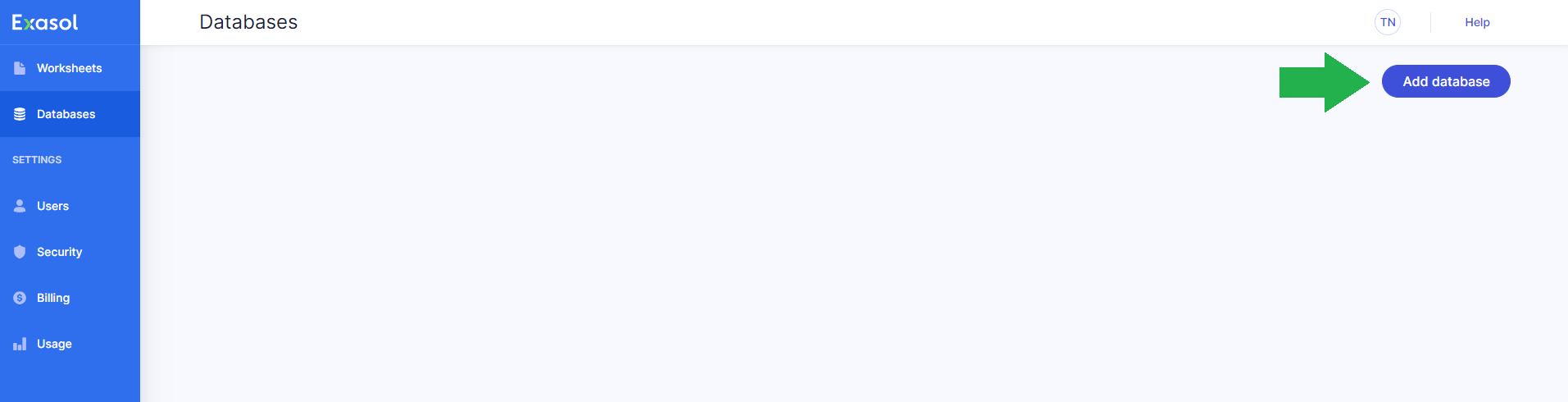
On the Databases page, click on Add database.
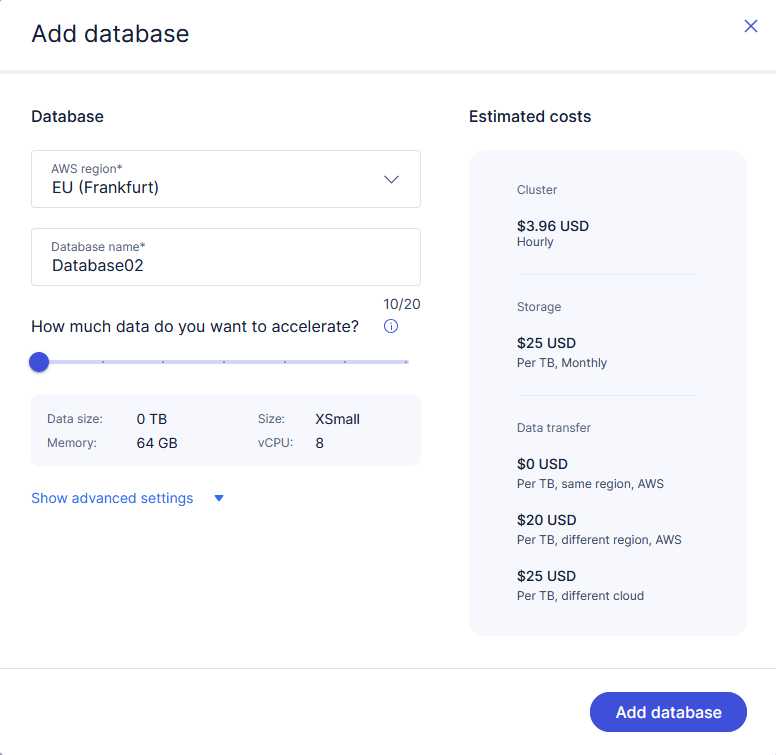
Select the AWS region where your new database will be deployed. If you are unsure, select the region that is closest to your location.
Exasol SaaS can currently be deployed in the following AWS regions:
| Region | Code |
|---|---|
| US East (Virginia) | us-east-1 |
| US East (Ohio) | us-east-2 |
| US West (N. California) | us-west-1 |
| US West (Oregon) | us-west-2 |
| Europe (Ireland) | eu-west-1 |
| Europe (London) | eu-west-2 |
| Europe (Frankfurt) | eu-central-1 |
Use the slider to select the amount of data you want to accelerate. Exasol SaaS will select the optimal cluster size and instance type for your use case.
How to choose the optimal size
The optimal cluster size for an Exasol database is determined based on usage patterns. As a rule of thumb, start with a RAM size that corresponds to about 10 percent of the size of your raw data.
Depending on your workload you may need a larger cluster size to use additional CPU and memory. However, a smaller cluster may also meet your requirements and be more cost effective. You can dynamically test which size best fits your needs by resizing the cluster.
Advanced settings
The Advanced settings allow you to fine-tune your cluster by manually setting the number of nodes and choosing an EC2 instance family. You can also choose which release stream to use for database updates.
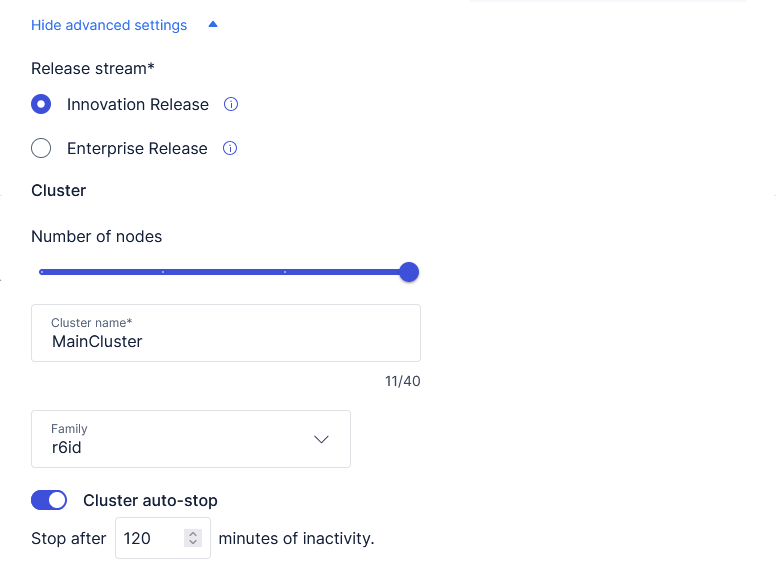
Release stream
When you create an Exasol SaaS database, a scheduled task is added that regularly checks for new versions and automatically updates the database to the latest version. You can select which release stream to use for the updates:
-
Innovation Release gives you early access to the latest features as they are rolled out.
-
Enterprise Release only receives major updates and bug fixes.
To learn more, see Automated updates.
Family
You can select the EC2 instance family that best fits your use case. For more information about EC2 instance families, see Instance types - Amazon Elastic Compute Cloudin the Amazon AWS documentation.
All EC2 instance families are not supported in all AWS regions. If the selected instance family and region are not compatible, you will see an error message. For more information, contact Support.
Cluster auto-stop
Exasol SaaS automatically stops the cluster after 120 minutes of inactivity. You can change the timeout value or disable the auto-stop feature.
Disabling the auto-stop feature may result in increased cloud resource usage.
Confirm choices and create the database
When you have set the desired options for your database, click on Add database.
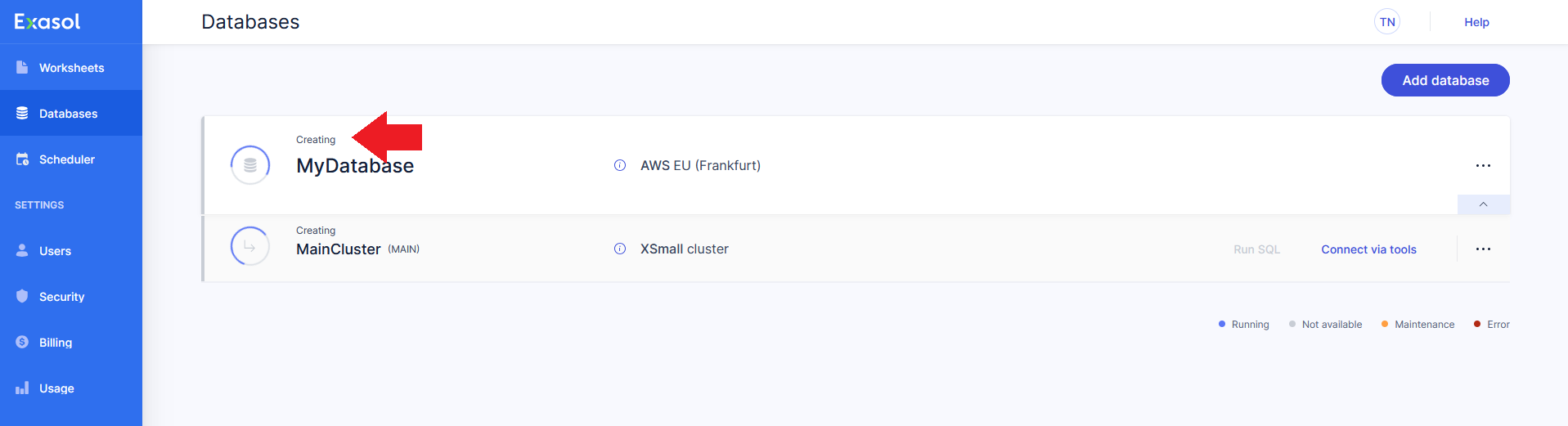
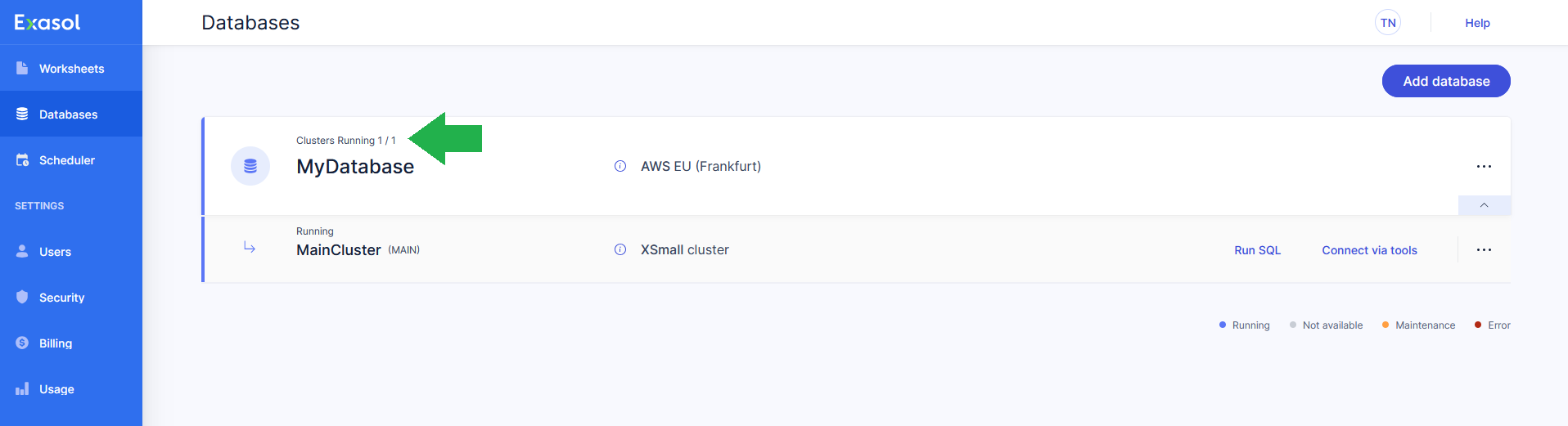
On the Databases page, the new database and cluster will have the status Creating until they are ready for use. The creation process will take about 15 minutes to complete. You will receive an email when your database is ready for use.