Automated updates
Learn about how Exasol SaaS automatically keeps your database updated.
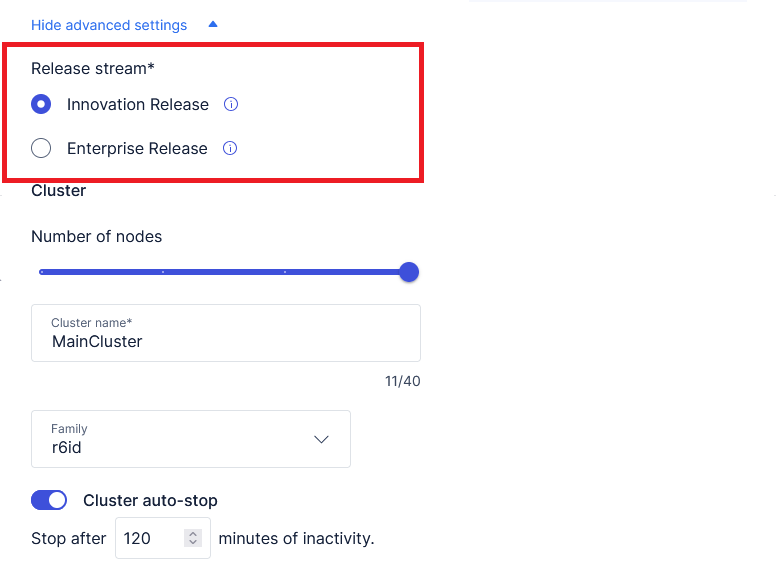
When you create an Exasol SaaS database, a scheduled task is added that regularly checks for new versions and automatically updates the database to the latest version. In the Advanced settings section you can select which release stream to use for the updates:
-
Innovation Release gives you early access to the latest features as they are rolled out.
-
Enterprise Release only receives major updates and bug fixes.
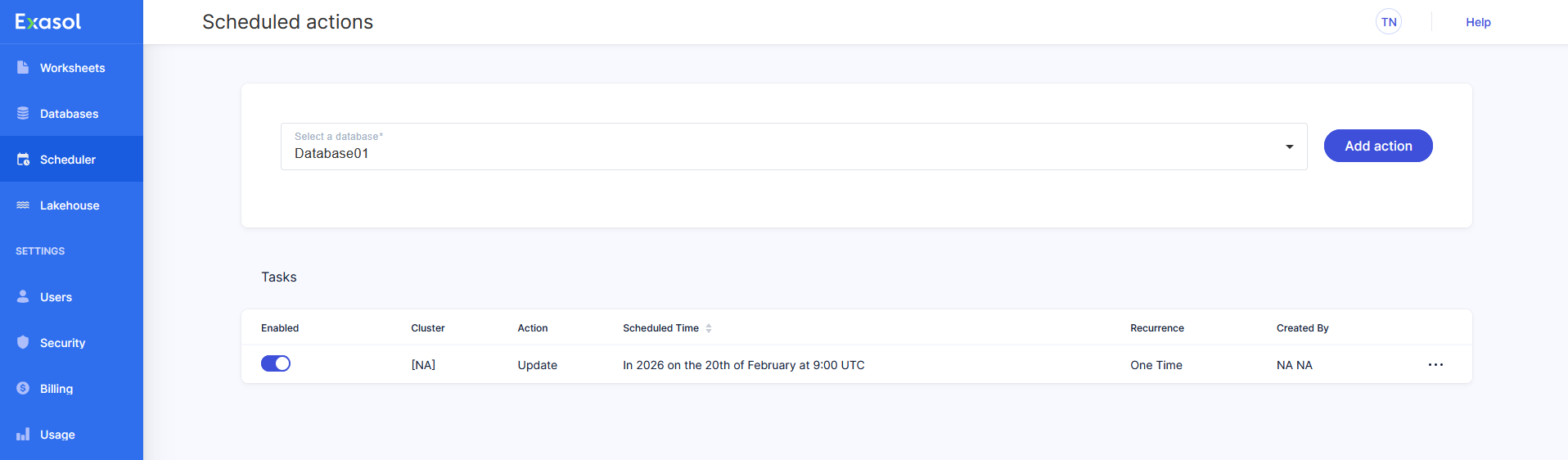
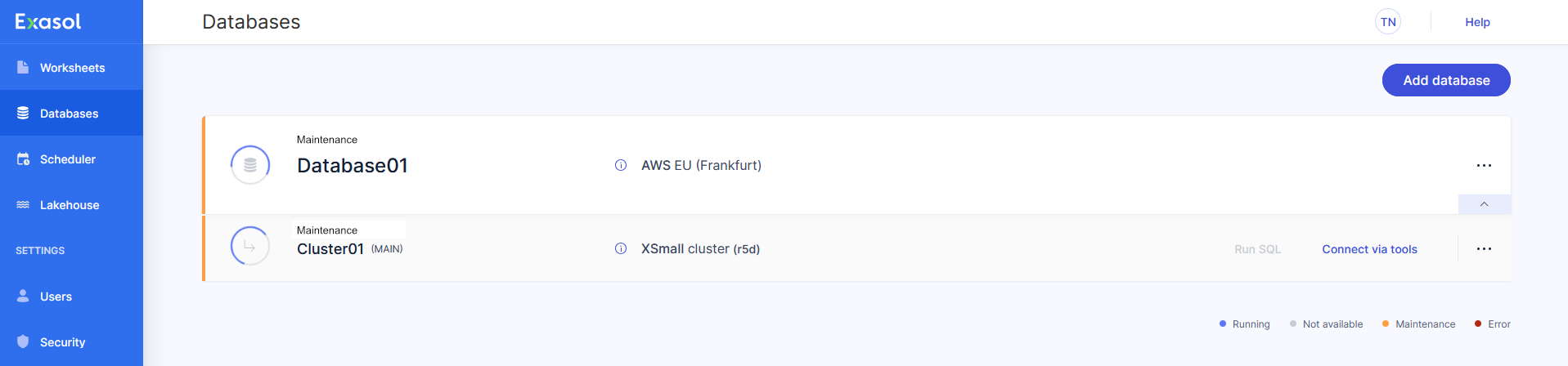
While the update is running, the database will be in Maintenance status. When the update has completed, the database will automatically restart.
The database will be offline during the update.
When the database has been updated, you will also receive a notification to the email address attached to your Exasol account.
Updating manually
Automated updates are enabled by default. To disable automated updates:
-
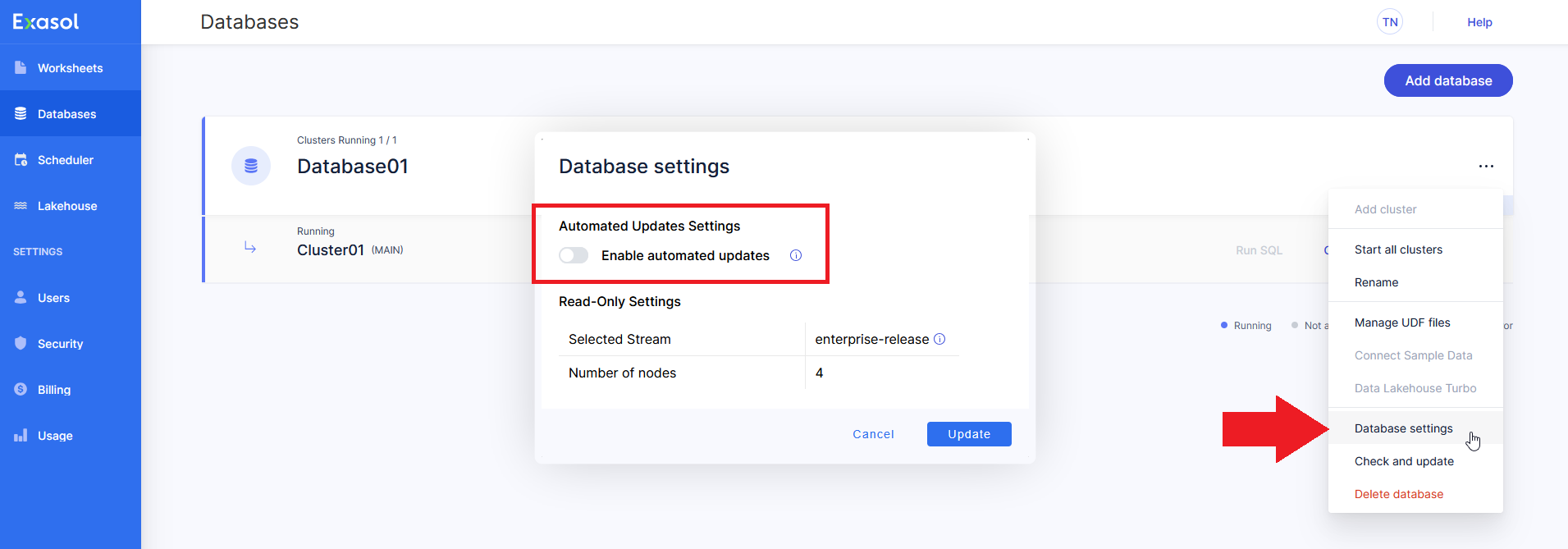
On the Databases page, open the dropdown menu for the database and select Database settings.
-
Switch off Enable automated updates, then click on Update to update the database settings.
If you have disabled automated updates, Exasol SaaS will instead notify you when an update is available. You can then choose to run the update manually.
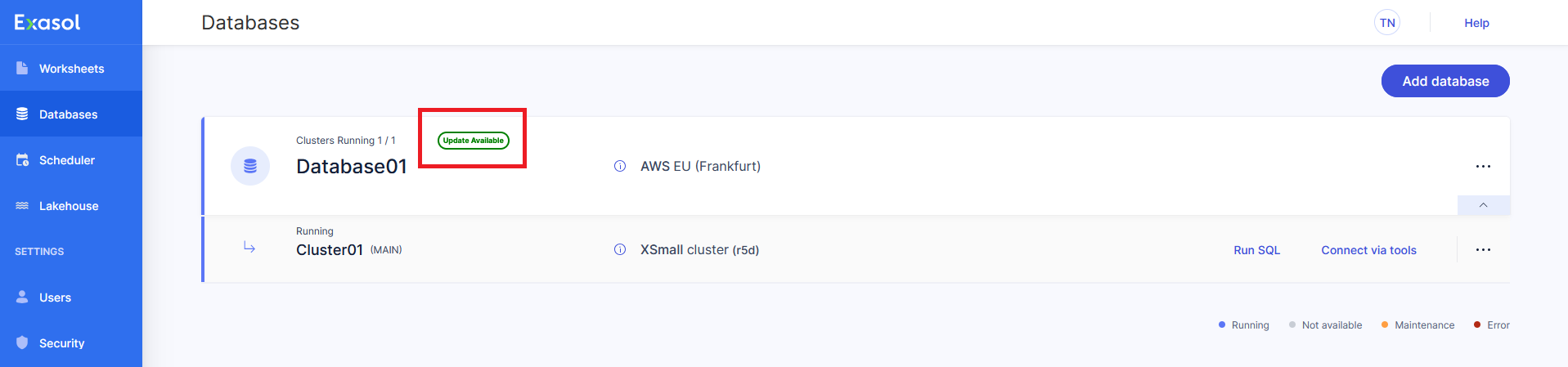
To manually start an update:
-
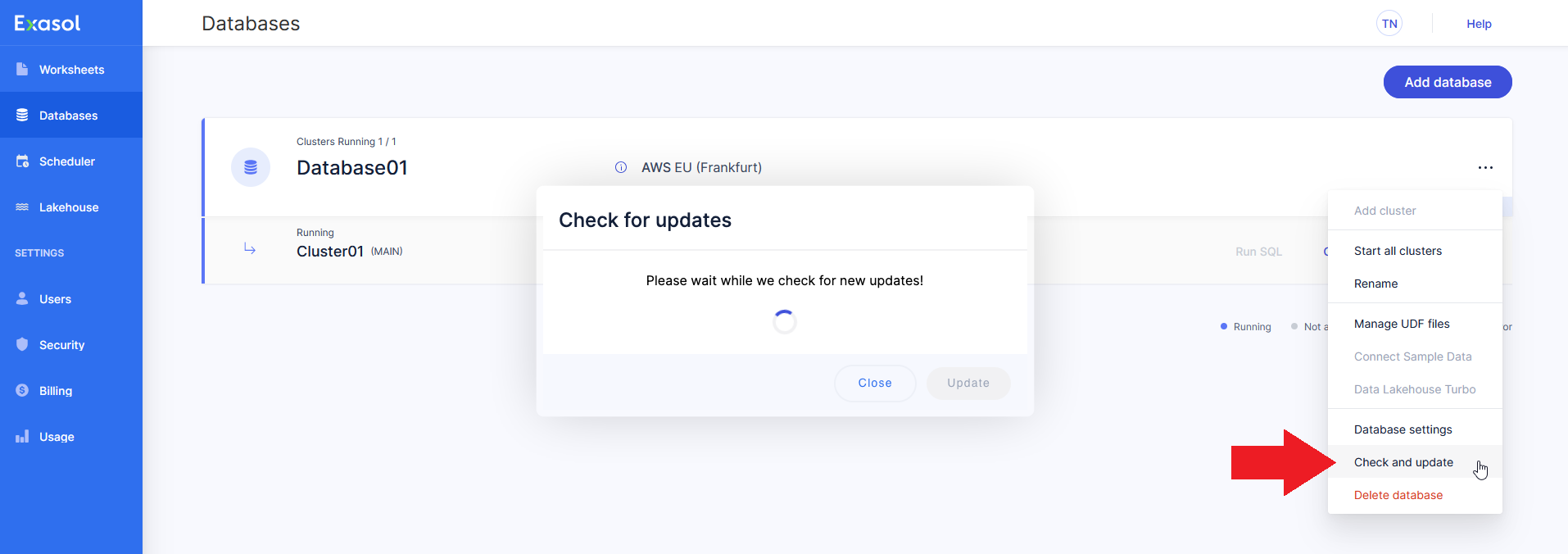
In the dropdown menu for the database, select Check and update.
Exasol SaaS will now check for the latest version and prepare the update.
-
Click on Update to confirm that you want to update to the new version.
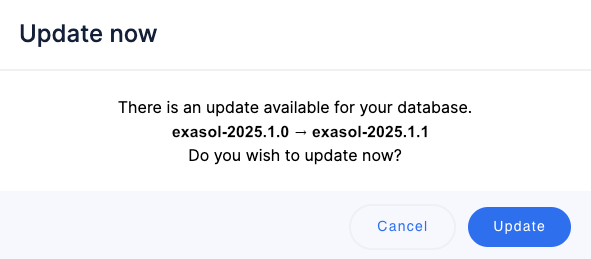
While the update is running, the database will be in Maintenance status. When the update has completed, the database will automatically restart.
The database will be offline during the update.