Manage Exasol SaaS users
Learn how to manage users in an Exasol SaaS organization account.
The Users page in the web console provides an overview of the users in the account, including their contact information, roles, and the databases to which they have access. If you have the Owner role, you can invite new users and edit or remove users on this page.
Invite a new user
You must have the Owner role to invite users.
-
On the Users page, click on Invite user.
-
In the Organization role dialog, enter a valid email address for the user and select a role, then click on Next.
For more information about organization roles, see Role based access control.
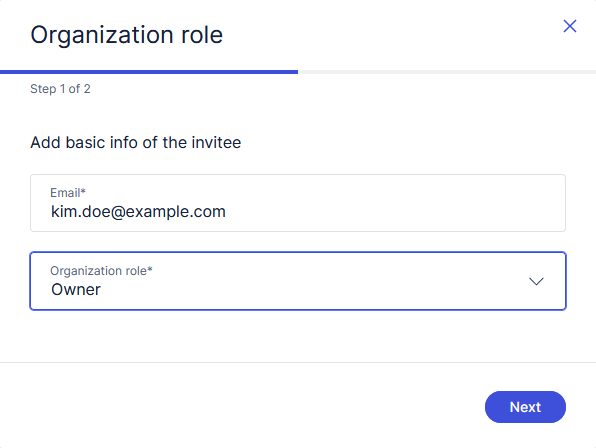
-
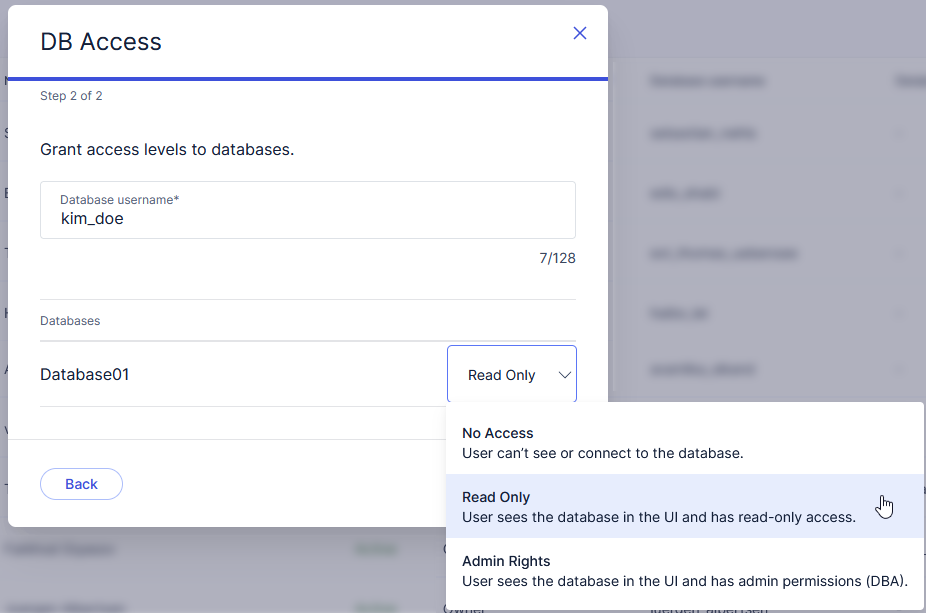
In the DB Access dialog, enter a unique username for the invited user. A database user with this name will be created on each specified database.
-
Select the database access level that you want the user to have on each database: no access, read-only access, or full admin permissions (DBA).
More granular access privileges can then be granted/revoked using SQL, see Grant additional privileges.
-
Click on Invite to close the dialog and send the invitation, or Back to go back to the Organization role step.
The user will receive an email with a link to accept the invitation and complete their profile.
Grant additional privileges
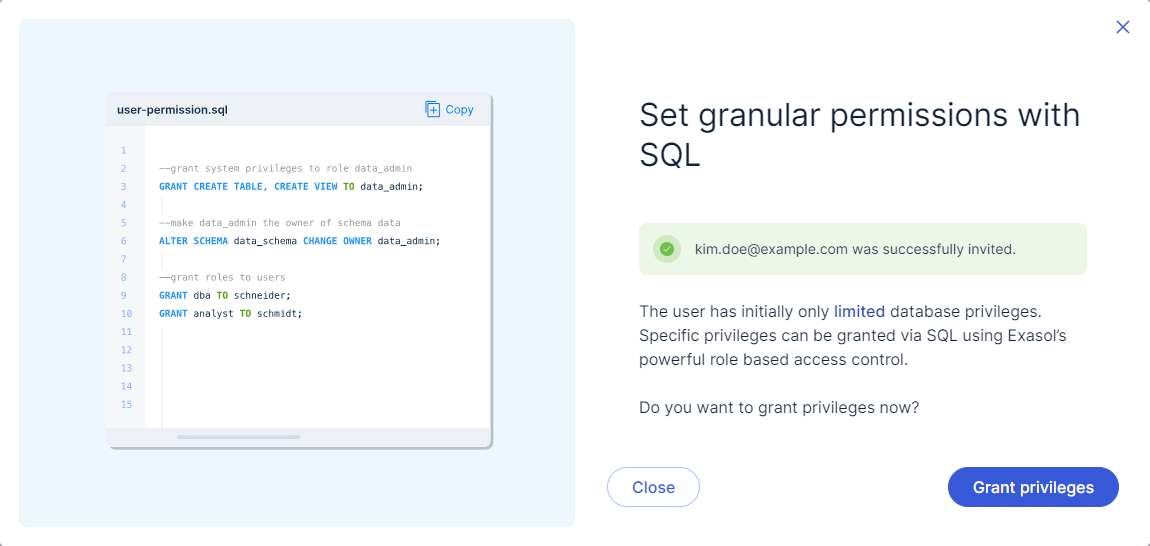
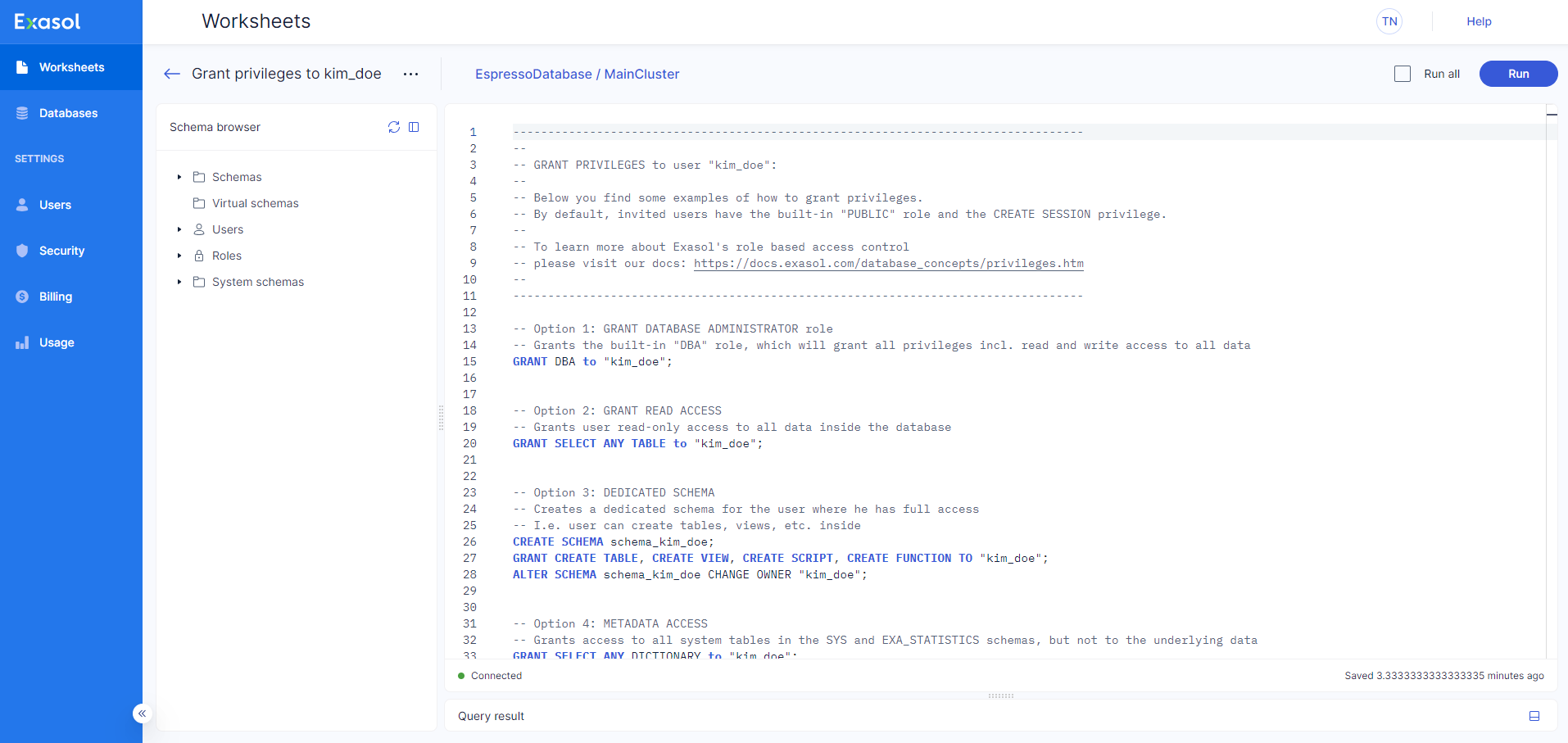
When you have created the invitation, you will be asked to grant additional privileges using an automatically generated worksheet that can be edited as needed. You can do this step immediately after sending the invite or at a later time as you wish. You can also delete the auto-generated worksheet and grant privileges in a new worksheet or using an SQL client.
Manage invitations
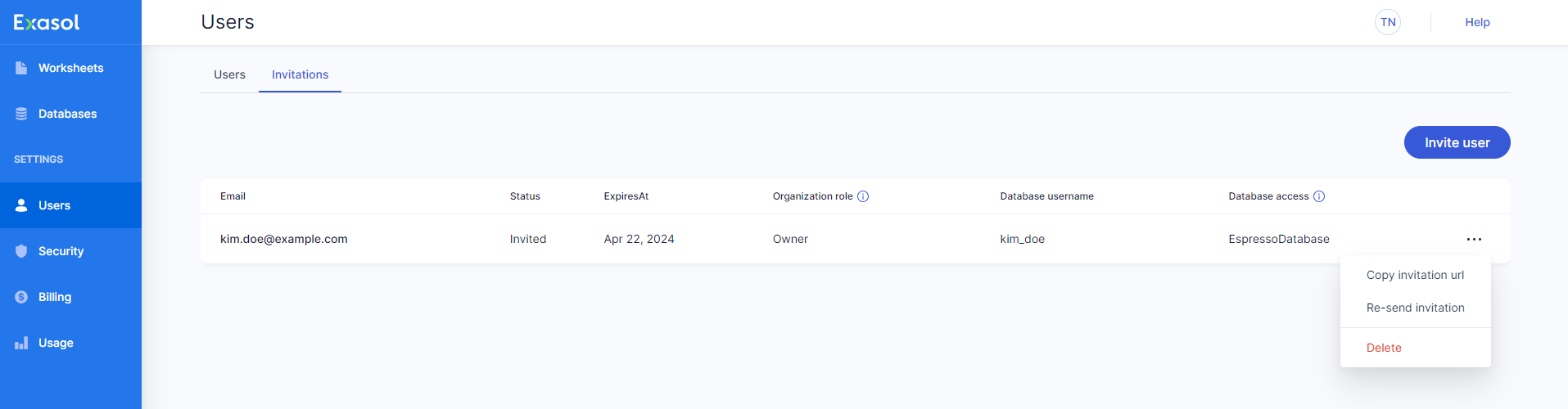
Invited users are listed under the Invitations tab until they have accepted the invitation and completed their profile.
You can copy the invitation URL, resend the invitation, or revoke the invitation using the dropdown menu for each pending invitation.
Edit users
You must have the Owner role to edit users.
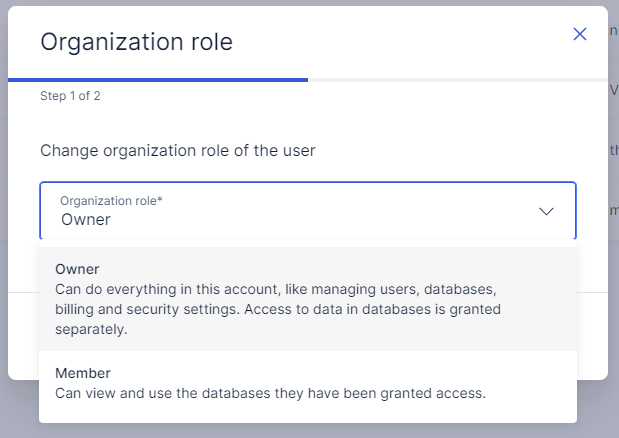
As an account owner, you can change the organization role and database access level for users in the account.
-
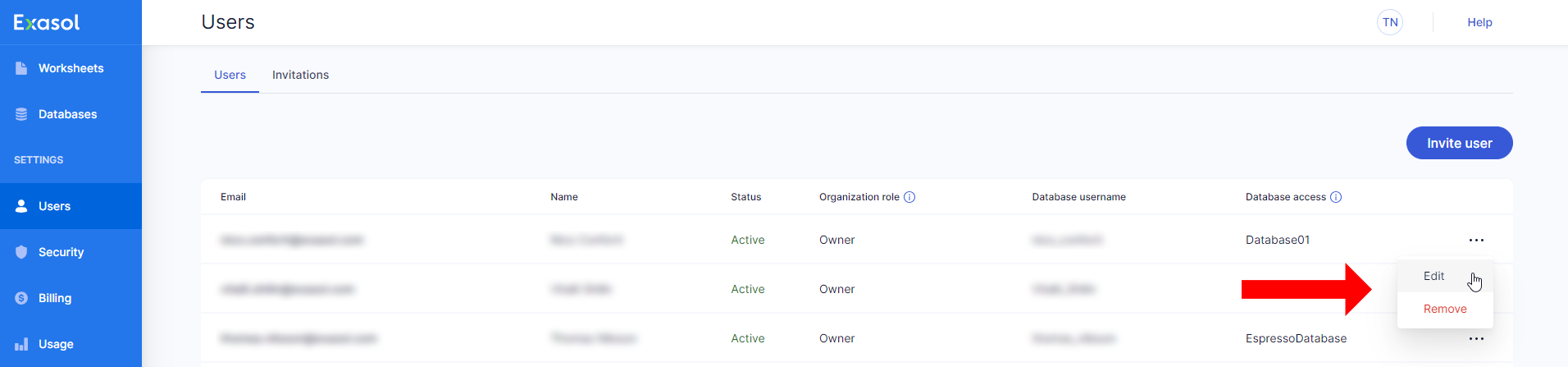
On the Users page, select Edit in the dropdown menu for the user.
-
Select the organization role that the user should have, then click on Next.
-
Select the desired access level for the user on each database: no access, read-only access, or full admin permissions (DBA).
-
Click on Update to apply the changes, or click on Back to go back to the Organization role step.
Changing the access level for a user from Admin Rights to No Access will delete the corresponding database user in that database. To prevent data loss, the owner is automatically changed to SYS for all schemas that were owned by the deleted user.
Changing the access level to Read Only will also change the schema owner to SYS for schemas owned by the user. If you change the access level of the user back to Admin Rights again, the ownership of the schemas is not automatically restored. To change the schema owner from SYS back to the original user, use ALTER SCHEMA.
Remove users
You must have the Owner role to remove users.
As an account owner, you can remove a user from the account. To remove a user, do the following:
-
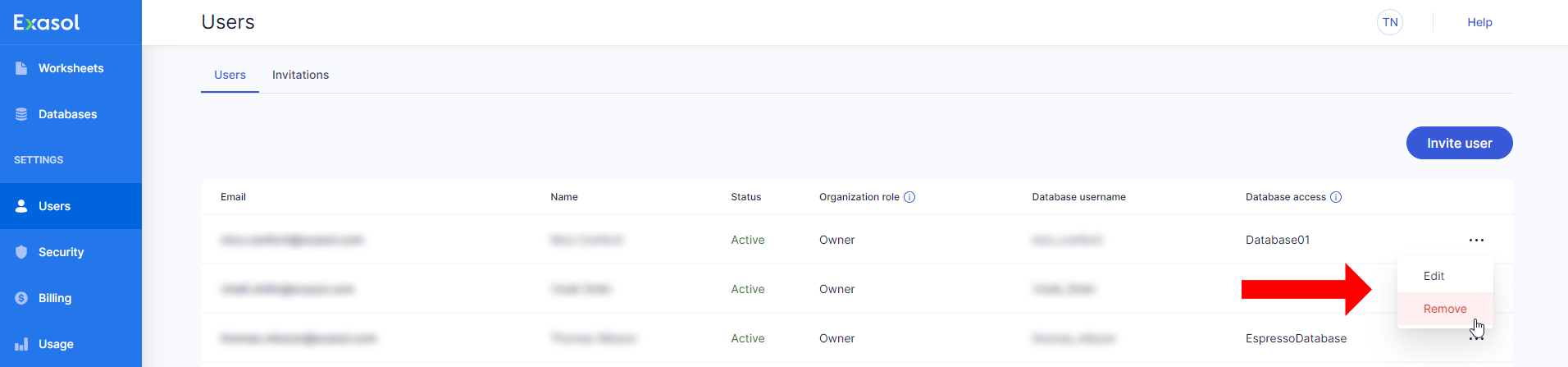
On the Users page, select Remove in the dropdown menu for the user.
-
Click on Delete to confirm that you want to remove this user from the account, or click on Close to cancel the operation.
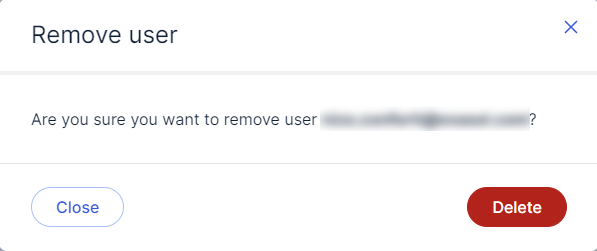
Removing a user will also delete the corresponding database user in the databases the user had access to. To prevent data loss, the schema owner is automatically changed to SYS for the schemas that were owned by the user in those databases.