Logs for SQL and server processes
Learn how to generate logs for SQL and server processes.
If you open a support case because you are experiencing transaction conflicts, you need to provide logs for the SQL and server process in the database for the time period when the problem occurred.
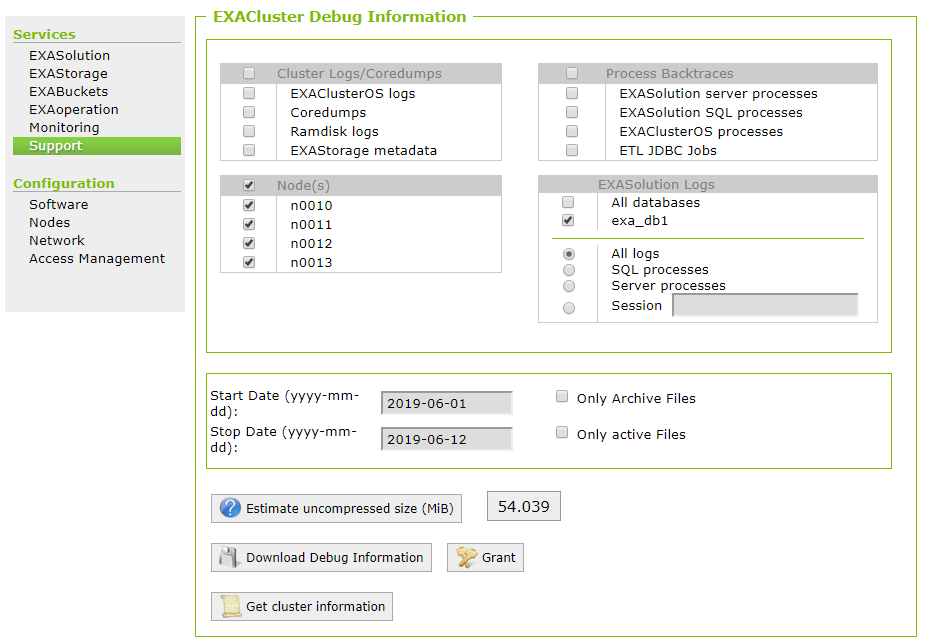
- Open EXAoperation and go to Services > Support.
- Set up the options on the EXACluster Debug Information screen as follows:
- In Cluster Logs/Coredumps, leave all options unchecked.
- InProcess Backtraces, leave all options unchecked.
- In Node(s), select all nodes.
- In EXASolution Logs, select the impacted database and All logs.
- Set the start and stop dates for the day the issue occurred.
-
Click on Download Debug Information to download the file locally, or click on Store Debug Information into Archive Volume to save the file to a remote server.
- Attach the downloaded file to your support ticket.