Logs for SQL Processes
Learn how to collect logs for SQL processes.
If you open a support case because you are experiencing problems with a specific SQL statement, you need to provide log files for the SQL processes on the database for the time period when the problem occurred.
Follow these steps to get the log files:
- Open EXAoperation and go to Services > Support.
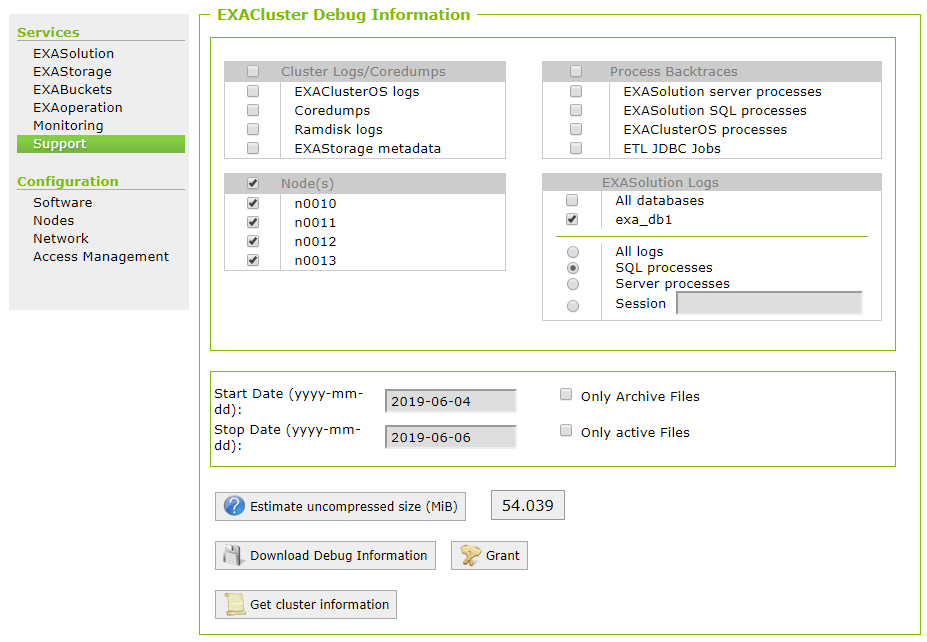
- Set up the options on the EXACluster Debug Information screen as follows:
- In Cluster Logs/Coredumps, leave all options unchecked.
- InProcess Backtraces, leave all options unchecked.
- In Node(s), select all nodes.
- In EXASolution Logs, select the impacted database and SQL Processes.
- Set the start and stop dates for the day the issue occurred.
- Click on Download Debug Information to download the file locally, or click on Store Debug Information into Archive Volume to save the file to a remote server.
- Attach the downloaded file to your support ticket.