Manage update URL
You can use an FTP server to store all EXAClusterOS packages and automate the process to avoid manually uploading the packages through EXAoperation for different Exasol instances. This section explains how you can specify an FTP server URL that you can use for updating multiple instances of Exasol using the same source.
Define update URL
-
Create directories on your FTP server to upload Exasol update packages. Each package should be in a directory named after the relase number. For example, the directory
Exasol 7.1.0
should contain the Exasol 7.1.0 update package.The update package file must be renamed to
EXAClusterOS-7.1_Patchlevel-<os_update_version>.pkgto be visible in EXAoperation. -
Log in to EXAoperation as an administrator.
-
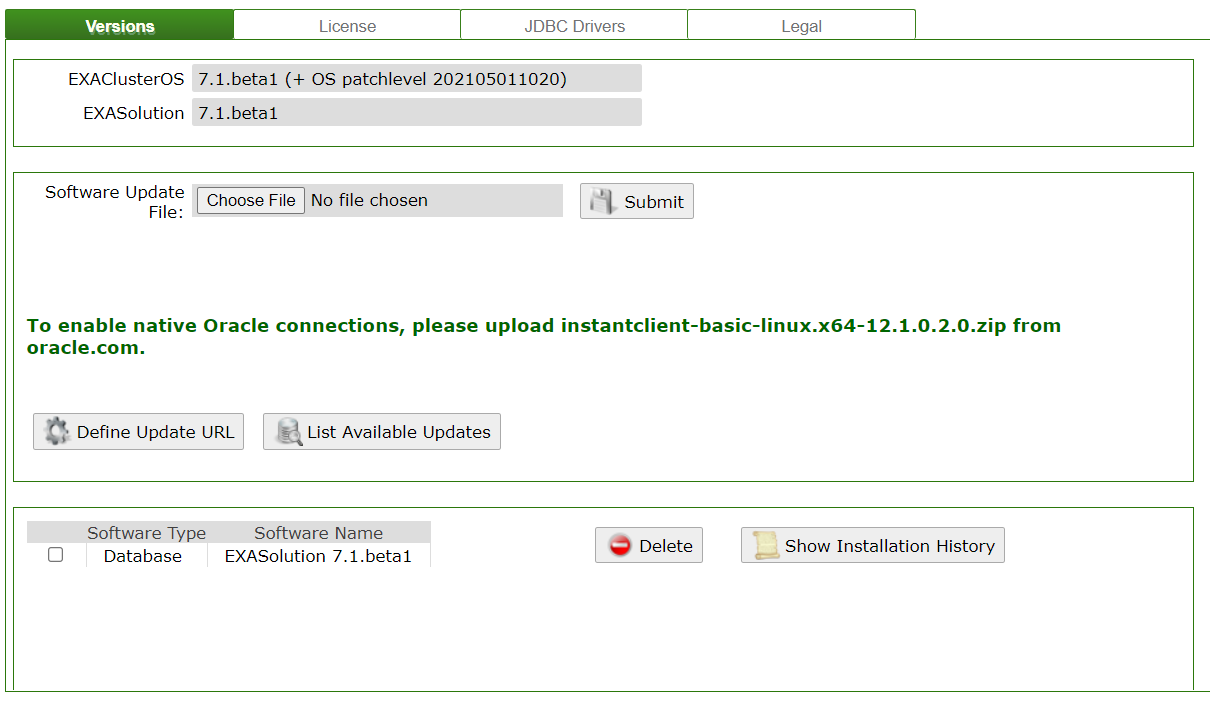
Select Software > Version and click on Define Update URL.
-
Use the following values for the update URL:
-
URL: the URL of the FTP server.
-
User: the username for the server.
-
Password: the password for the user.
-
-
Click on Apply.
The update URL is now set up in EXAoperation.
Check for updates
- Log in to EXAoperation as an administrator.
- Select Software > Version and click on List Available Updates. A list of available updates is displayed.
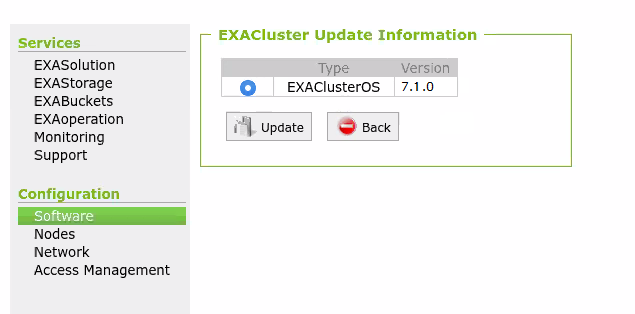
- Select the package you want to start the update with and click on Update.
- Continue the update procedure as displayed in the EXAoperation interface.