Create backup schedule
Learn how to create a schedule to automatically start backups.
Prerequisites
You must have an archive volume for the backups. For more information, see Create remote archive volume with Amazon S3.
Do not stop the database while a backup is in progress.
Do not modify the archive volume or the data volume while a backup is in progress.
Procedure (command line)
This procedure uses the command-line tool confd_client, which is available on all database nodes.
Placeholder values are indicated with UPPERCASE characters. Replace the placeholders with your own values.
-
Connect to the cluster operating system (COS) using
c4 connect -i PLAY_ID -s cos.Example:
Copy./c4 connect -i c3275f84 -s cosTo find the play ID, you can use
c4 ps.For more information about how to use c4 commands, see How to use c4.
-
To find the database name when you are connected to COS, use the ConfD job .
Example:
Copyconfd_client db_list
- MY_DATABASE -
To find information about available archive volumes:
Remote archive volumes
To find the names of available remote archive volumes, use the ConfD job :
Copyconfd_client remote_volume_listTo find the volume ID of a remote archive volume, use the ConfD job . The ID is stored under “vid”.
Copyconfd_client remote_volume_info remote_volume_name: VOLUME_NAMERemote archive volume IDs typically start at 10001.
You can also use the Administration API to get information about the database, archive volumes, and existing backups. For more information, see List backups.
-
To create the backup schedule, use the ConfD job .
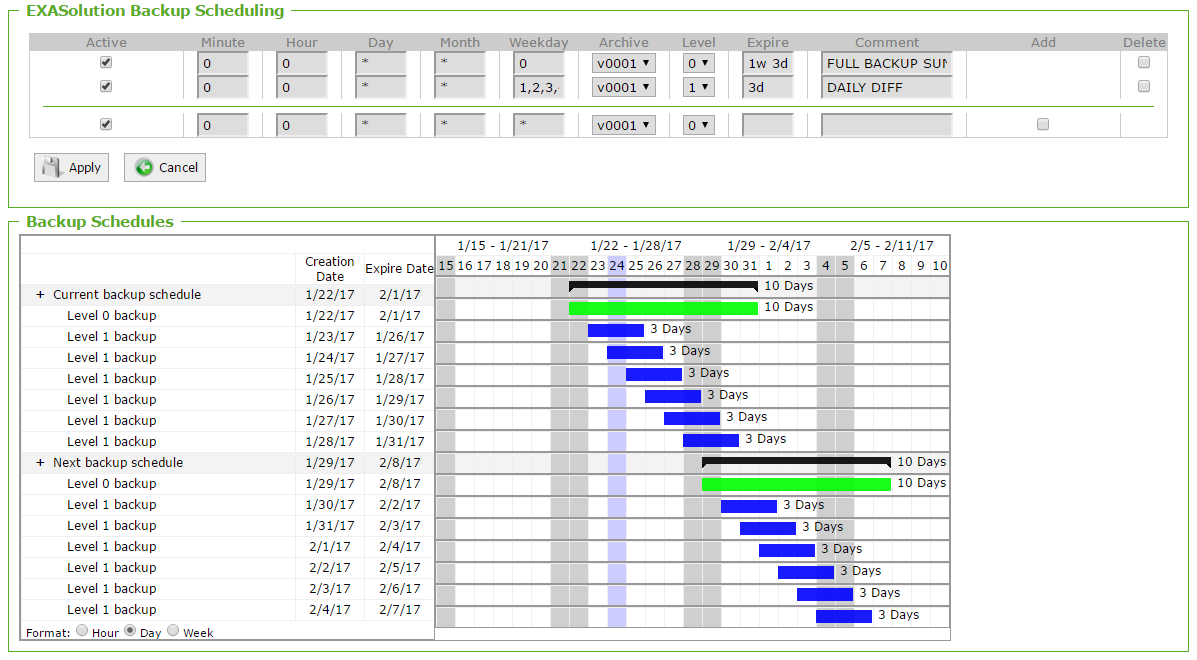
A common backup schedule is a weekly backup with an expiration of 10 days and incremental backups Monday - Saturday with an expiration time of 3 days. To set up this configuration, create two backup schedules. For example:
Copyconfd_client db_backup_add_schedule db_name: MY_DATABASE backup_name: weekly_full_backup backup_volume_name: VOLUME_NAME enabled: true level: 0 expire: '1w 3d' minute: 0 hour: 0 day: "'*'" month: "'*'" weekday: 0Copyconfd_client db_backup_add_schedule db_name: MY_DATABASE backup_name: daily_incremental backup_volume_name: VOLUME_NAME enabled: true level: 1 expire: '3d' minute: 0 hour: 0 day: "'*'" month: "'*'" weekday: "'1,2,3,4,5,6'"
Verification
To verify that the schedule was created, use the ConfD job . Information about backups is found in the config: section.
confd_client db_info db_name: MY_DATABASEExample output:
config:
  _sec_name: 'DB : Exasol'
  auto_start: true
  backups:
    daily_incremental:
      day: '*'
      enabled: true
      expire: 259200
      hour: '0'
      level: 1
      minute: '0'
      month: '*'
      volume: r0002
      weekday: 1,2,3,4,5,6
    weekly_full_backup:
      day: '*'
      enabled: true
      expire: 864000
      hour: '0'
      level: 0
      minute: '0'
      month: '*'
      volume: r0002
      weekday: '0'
Learn how to create a schedule to automatically start backups.
Backup schedules use the same format as cron jobs. For more information, see cron on Wikipedia.
Procedure
Do not stop the database while a backup is in progress.
Do not add or remove nodes on the archive volume or on the data volume being backed up while a backup is in progress.
Follow these steps to create a backup schedule:
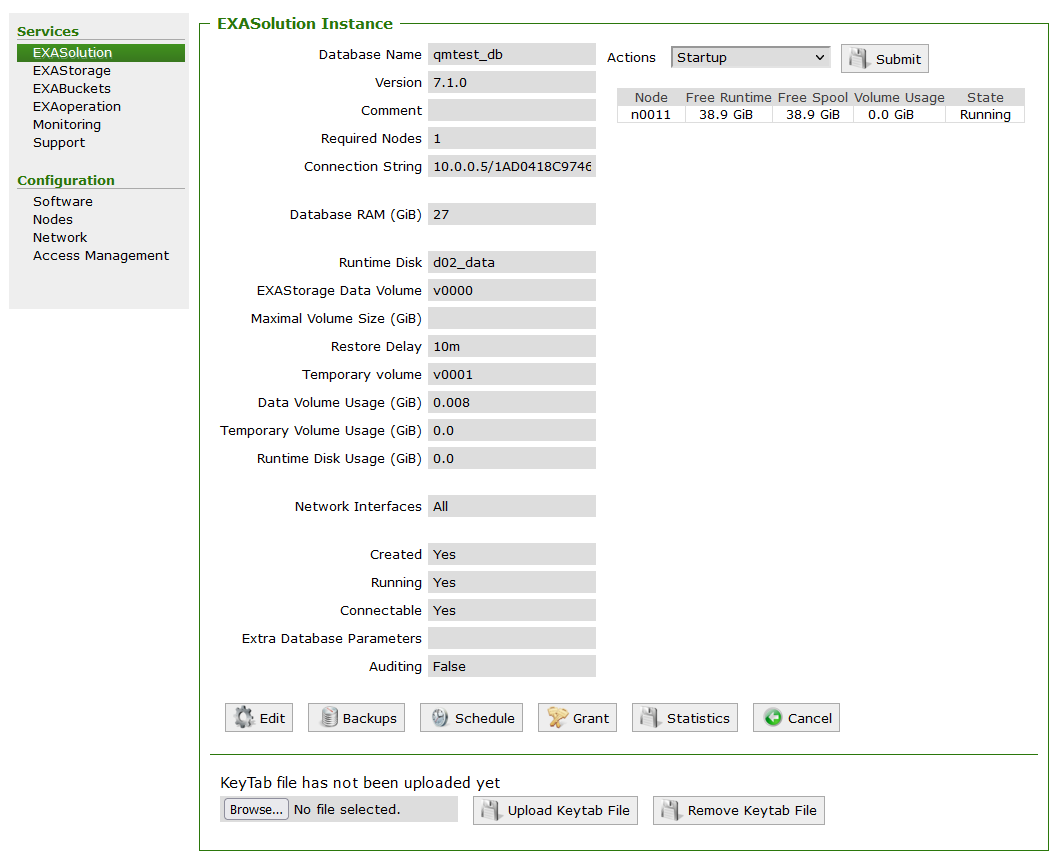
- In EXAoperation, go to Services > EXASolution and click the database instance for which you want to create the backup schedule. The Database Instance screen is displayed.
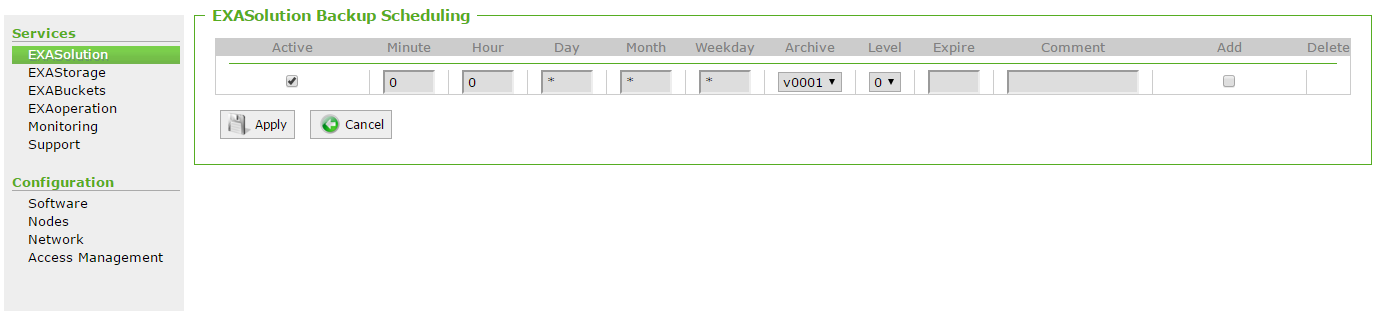
- Click Schedule to create a backup schedule. This displays the EXASolution Backup Scheduling screen.
- Set up a backup schedule using a combination of the parameters from Backup Schedule Settings. Separate multiple entries with commas.
- Select the Active checkbox and Add check boxes for the record you are adding, and click Apply.
Backup Schedule Settings
| Setting | Description | Value Range | Example |
|---|---|---|---|
| Active | Check box to indicate active backup schedule. | ||
| Minute and Hour | The time the backup must start. | 0-59 for Minute, 0-23 for Hour |
To start a backup at 11:15 PM, set Minute to "15" and Hour to "23". |
| Day | The day of the month the backup must run. | 1-31 | If a backup should run on the 15th, set Day to "15". |
| Month | The month the backup must run. | 1-12 | To run the backup every second month, set Month to "2,4,6,8,10,12". This backup will run in February, April, June, August, October, and December. |
| Weekday | The day of the week the backup must run. |
0-7:
|
To run the backup on Monday and Wednesday, set Weekday to "1,3". For Sunday, you can choose any of the two (0 or 7) options from the value range. |
| Archive | Select the archive volume the backup will be stored on. | N/A | |
| Level | The backup level, such as full backup, or incremental. |
0-9:
|
|
| Expire |
The duration of time until the backup will expire. |
N/A | To make a backup available for one week and three days, set Expire to "1w 3d". |
| Comment | A description for the backup. | N/A | "Weekly full backup." |
If a local archive volume runs out of free space, expired backups will be automatically deleted. Expired remote archive volumes will not be deleted by this function.
Example: Weekly Backup with Daily Incremental Backups
The following is an example of creating a weekly backup with daily incremental backups. The following is a suggestion for a backup schedule:
- Full Backup on Sunday at 00:00 (level 0), with a retention time of 1w 3.
- Incremental Backups every day of the week at 00:00 (level 1), with a retention time of 3d.
In this backup setup, a full backup (level 0) is done on Sunday at midnight. The backups on each week night (level 1) back up all changes that occur since the full backup. The backups are stored in an archive volume within the cluster.
Level 0 backup settings
- Active: Yes
- Minute: 0
- Hour: 0
- Day: Every Day (set to *)
- Month: Every Month (set to *)
- Weekday: 0 or 7 (Sunday)
- Archive: Select an archive volume.
- Level: 0 (Full Backup)
- Expire: 1w3d or 10d
- Comment: optional
- Add: Yes

Level 1 Backup Settings
- Active: Yes
- Minute: 0
- Hour: 0
- Day: Every Day (set to *)
- Month: Every Month (set to *)
- Weekday: 1,2,3,4,5,6 (Monday, Tuesday, Wednesday, Thursday, Friday, Saturday)
- Archive: Select an archive volume.
- Level: 1 (Incremental Backup)
- Expire: 3d
- Comment: optional
- Add: Yes

Completed Schedule