Microsoft Power BI Desktop
Learn how to connect Microsoft Power BI Desktop to an Exasol database.
Exasol takes no responsibility for changes in functionality or terms of use for third-party tools. For more details about the compatibility and use of these tools with Exasol, refer to the respective software vendor’s website.
Introduction
Microsoft Power BI is Microsoft’s business analytics platform that consists of two components: the Power BI Desktop application and the Power BI service. A certified custom connector for Exasol is integrated in Power BI Desktop and in the on-premises data gateway, enabling you to connect to Exasol using Direct Query mode as well as classical import mode.
This article explains how to connect Power BI Desktop to an Exasol database using the Exasol connector. For more information about how to use the Power BI software services, apps, and connectors, refer to the Power BI documentation on the Microsoft Learn website.
Prerequisites
-
Microsoft Power BI Desktop must be installed.
-
The Exasol ODBC driver must be installed. To learn more, see ODBC driver.
-
Your Exasol database must be running and reachable from the environment where the tool is used.
-
The IP address of the host where the tool is running must be in the allowed IP address list in Exasol SaaS. To learn how to allow traffic to your database, see Network security (SaaS).
-
To connect the tool to an Exasol SaaS cluster you will need the connection string and a personal access token (PAT) for authentication. To learn how to get the connection details, see Connect to Exasol SaaS.
Exasol SaaS
Connect Power BI Desktop to Exasol
-
In the Power BI Desktop application, create a new database connection and select the Exasol connector.
-
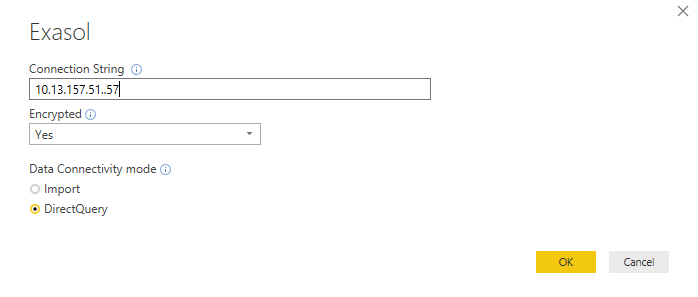
Set the following options:
-
Connection String: The connection string for the Exasol cluster.
For Exasol SaaS, use the connection string provided in the web console as hostname.
To learn about the structure of ODBC connection strings, see ODBC driver.
-
Encrypted: Yes
-
Data Connectivity mode: DirectQuery
-
-
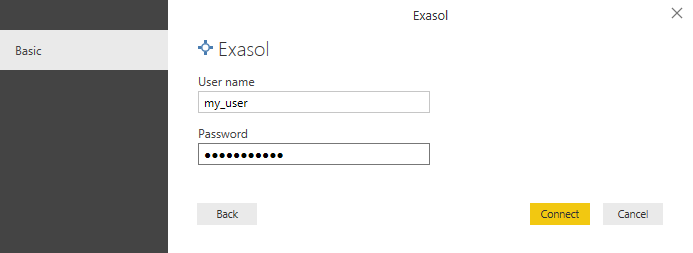
Enter the username and password for the Exasol database, then click on Connect to finish.
For Exasol SaaS, use a valid personal access token as password.
Next steps
To learn how to use Power BI Desktop and the on-premises data gateway, refer to the Power BI documentation on the Microsoft Learn website.